

An access code is a 20-character code that works like a password. Type it on the sign-in page and you are in — no email needed. It is handy at an event, on a borrowed laptop, or anywhere your email is slow to arrive.
Make your code
You need to be signed in once (with an email link) to make a code.
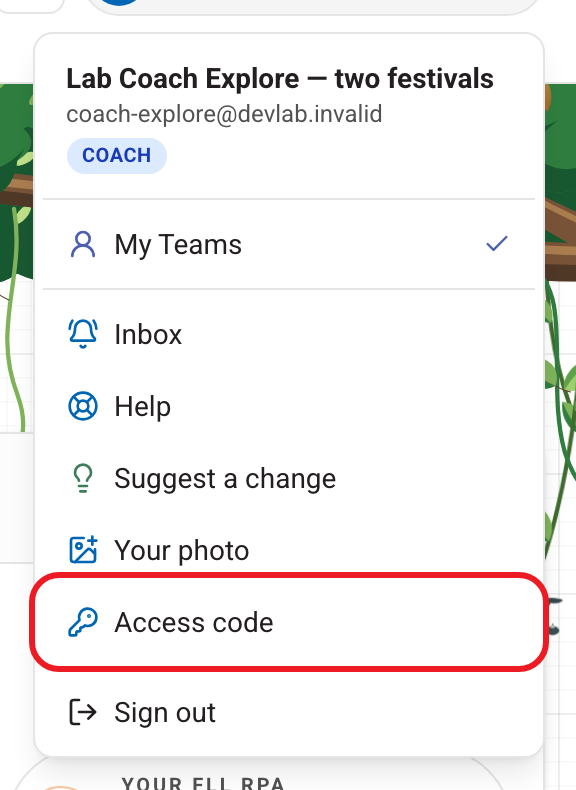
- Open the account menu — your name, top right.
- Choose Access code.
- Press Create my access code. If you already have one, the button says Regenerate and the box shows the date your code expires.
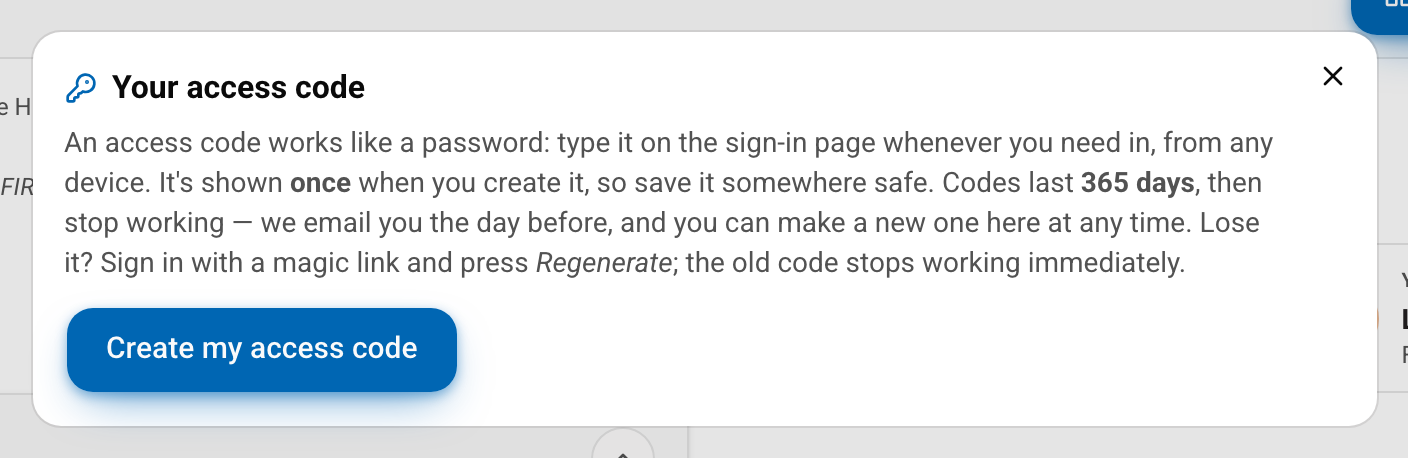
- Your code appears once. Press Copy and save it somewhere safe, such as a password manager. Once you close the box it is not shown again.
Treat the code like a password. Anyone who has it can sign in as you.
Sign in with your code
- Go to the sign-in page.
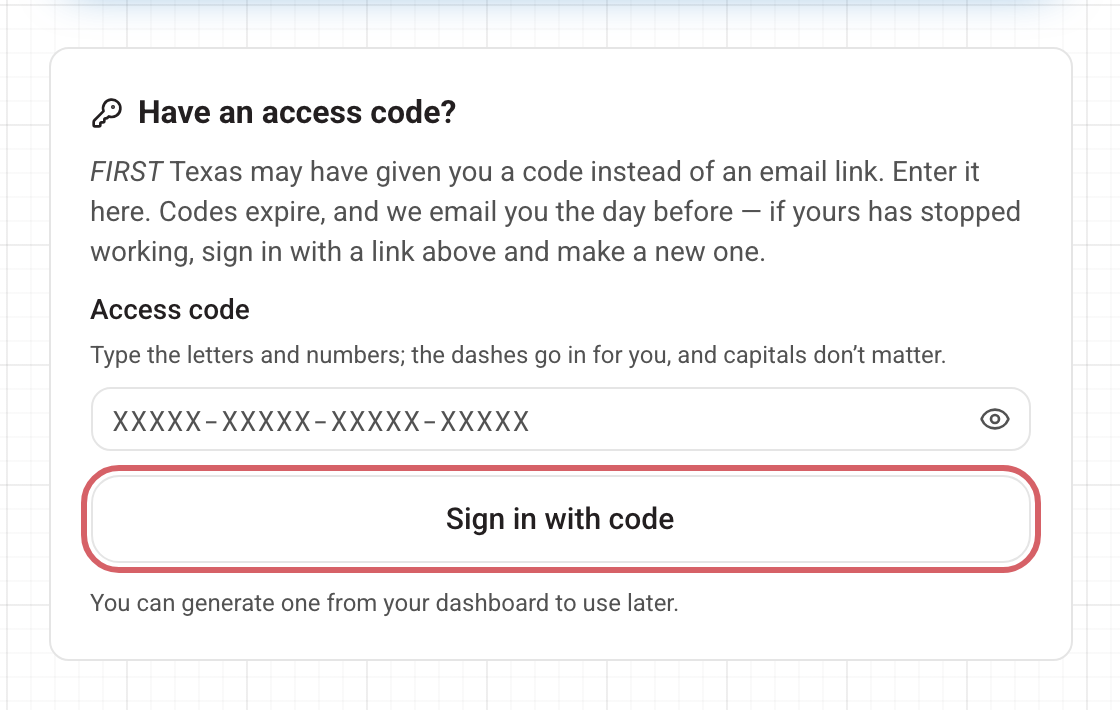
- Under Have an access code?, type your code into Access code. The dashes go in by themselves, and capitals do not matter.
- Press Sign in with code.
When it stops working
- Codes expire. A coach's code lasts 365 days. We email you the day before it expires.
- Lost it, or think someone else has it? Sign in with an email link, open Access code and press Regenerate. The old code stops working straight away, and you get a new one.
- "That code isn't valid" means it was typed wrong, has expired, or was replaced by a newer one. Sign in with an email link and make a new one.
- "Too many attempts" means several wrong codes in a short time. Wait about 15 minutes and try again.
FIRST Texas staff can also give you a code if you cannot get an email link to work. Ask through Help in the account menu, or email texasinfo@firstinspires.org. More in Signing in.