

When an event is full, you can put your team on its waitlist. Nobody moves off a waitlist automatically, and it is not first in line, first served: your Regional Program Administrator (RPA) decides who gets a seat that comes free.
How to tell an event is full
The seat meter on the event page and in the event list says Waitlist only as soon as any team is waiting. From that moment no seats are open to grab, even if one has just come free. Seats go to the RPA to hand out.
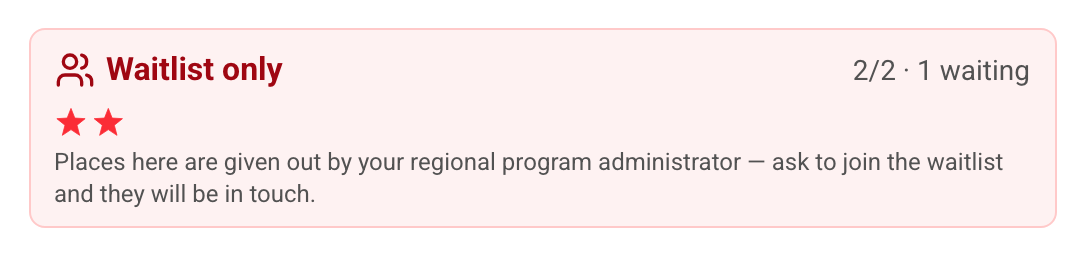
If the meter says Waitlist closed, the waitlist has reached its limit and no more teams can join it. Ask your RPA about another event.
Joining a waitlist
Joining is always your choice. The site never puts you on a waitlist without asking.
- In Choose an event, a full event's button reads Join the waitlist.
- On the event page, the button reads Assign Team (waitlist).
- On the Assignment Board, drop the team on a full event to join its waitlist.
- When you use Switch event, tick If it's full, put me on that waitlist to allow it. Without the tick, a switch to a full event is refused and your team keeps its current place.
A FIRST LEGO League Challenge or Future Edition team holds one event at a time, and a waitlist place counts as that event. Switching to another event gives up your place on the waitlist.
What you see while you wait
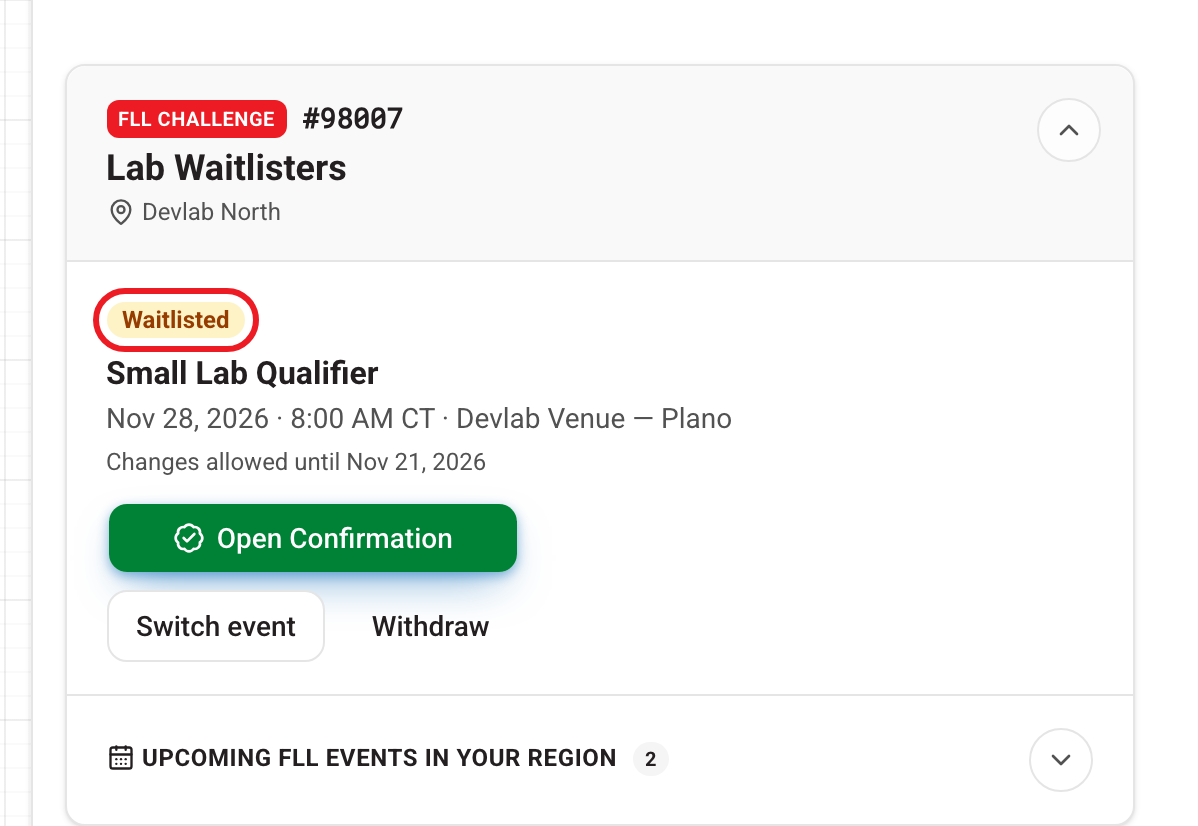
Your team card shows Waitlisted next to the event. Open Confirmation shows the full details, and you can still Switch event or Withdraw until the change deadline shown on the card.
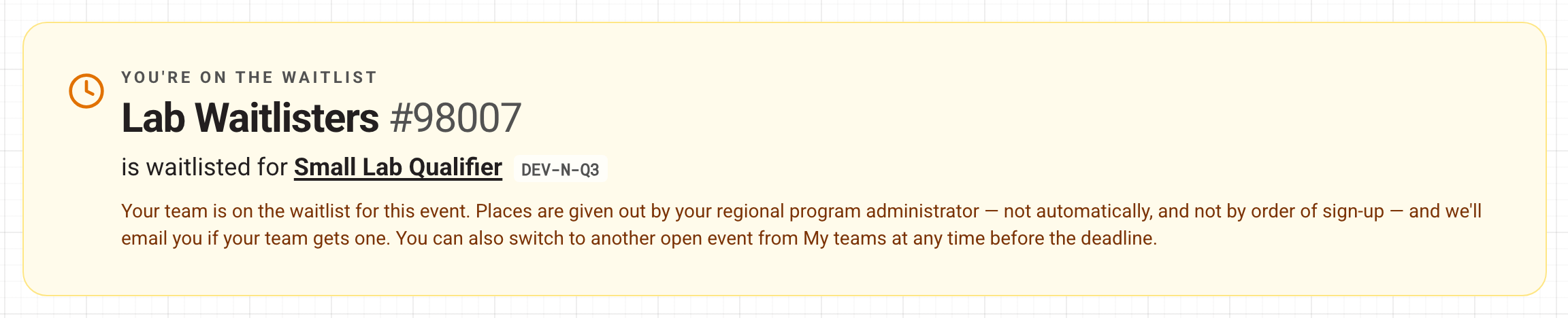
You don't owe a Texas event fee while you are only on the waitlist. The fee is due once your team gets a seat. See Fees and "Event ready".
When your team gets a seat
If your RPA gives your team a seat, your team card changes from Waitlisted to Event selected. Your RPA can also send you a notice, which arrives by email and in your Inbox (the bell at the top of the page), so check your dashboard too. Then pay the local event fee for that event.
If you would rather not wait, use Switch event to move to an event that still has open seats, or Withdraw to give up the place.
Still stuck? Open Help in the account menu, or see Getting help.